

Monitor Fresh Release Performance with ISV Insights
Quick App Analytics Query Recipe for Version tracking
ByHarshvardhan

Your AppExchange product is always upgrading to successively better versions. Each new release comes with its own set of possibilities and challenges.
While analyzing the performance enhanced through an upgrade, we also need to closely watch for any usage drops or challenges faced by the customer.
ISV Insights throws light on performance for your fresh upgrades, by analyzing app analytics query data and bringing the relevant insights to your dashboard.
Pre-Requisites
Ideally, you need to have data of 2 months. Also, the fresh functions must be added into your features list. If you haven't added a feature before, here is a quick reference.
Pin the Fresh Features
This simple yet elegant function lets you pin the fresh features that need regular attention. Navigate to Feature Usage page, or Feature Manager and click on pin icon 📌 beside the feature name.
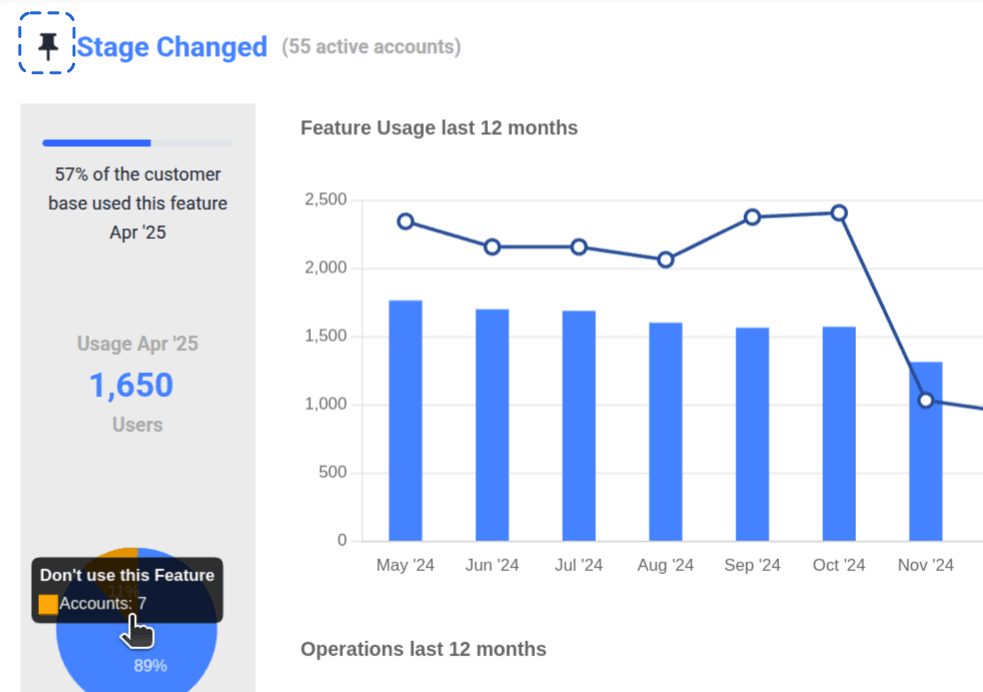
This view informs you of any rise (or fall) in feature usage. Switch to weekly or daily view for a close analysis of feature adoption.
Version Watchlist
You may enable Email report / Dashboard view for any accounts that have upgraded to the latest version. Simply open your ISV Insights Dashboard and navigate to Active Accounts. to setup this quick list.
-
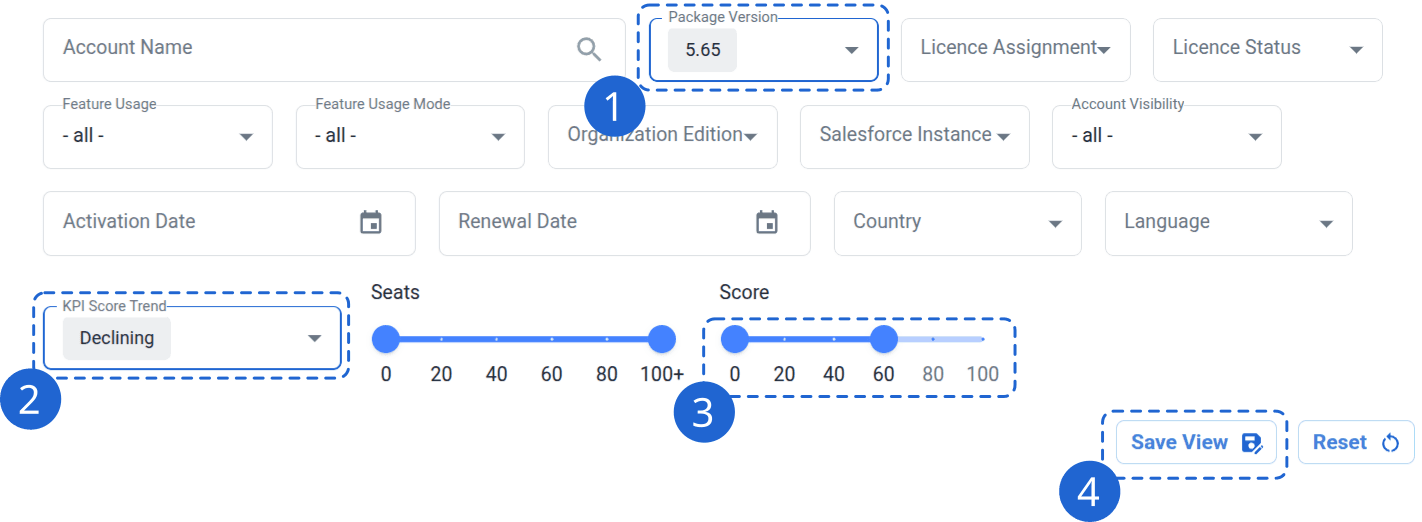
Go to Active Accounts – Choose Package Version from among the filters list.
-
You can set KPI Score Trend to Declining
-
Set a range of Health Score. It’s recommended that we set the bar for 0-50 or 0-75 to catch the slightest hints of the drop in the performance. Such performance issues are usually .
You can see these filters in effect as you apply them. If there are no accounts in the Filter range chosen by you, it simply means that all accounts that are shifted to new version are in healthy range.
-
After verifying the value, click on ’Save View as..', right beside the ‘Reset’ button. Select an appropriate title for this watchlist.
-
Once you have created such list, all accounts using latest version of App, with any performance threats will be always visible under [Watchtower icon](https://doc.isvinsights.ai/docs/Dashboard/watchTower - on the top right corner of your Dashboard.
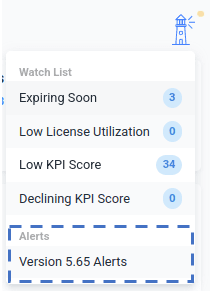
This watchlist will bring immediate attention to any Accounts with low usage as result of the Version change.
Health Score for new Features
Once you have rolled out a fresh set of features, or a version upgrade altogether, it's time to update the KPI Score definition and include new features in the Measurement
-
Make update to the existing score, or go to Setup > KPI Score and create a dedicated adoption score. For the ‘rule type’, select ‘Feature Usage’ radio button. Pick one of the new features from dropdown list.
-
Before you go ahead to design the Rules, think about the prospective users of the Features. Do you want to Make sure of that the feature Reaches everyone in the User Base? May be, it is a niche feature designed for some selective admin class of users?
-
If it’s a relatively niche feature, set ‘Operation Count’ as the Target Metric. For features expecting a wider adoption, set the Target metrics to “unique user count” instead
-
The best-case scenario is if all the features defined in this list belong to a specific Release Version. That way, you can simply associate this score to the specific version as described in previous section.
-
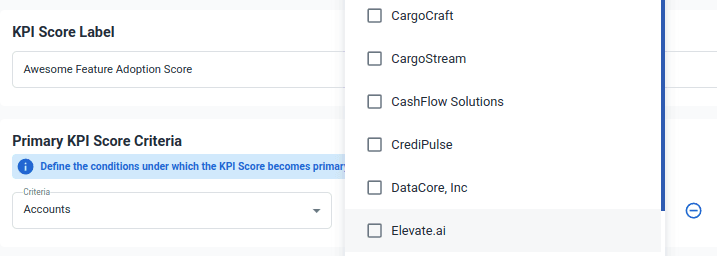
Alternatively, if you have a Closed User Group or testing Cohort for the new Features this score can be assigned to a list of Accounts. Under “Primary KPI Score Criteria” Click dropdown ‘Criteria’ and select all Accounts that constitute your testing cohort.
That’s it! You are all set to ensure success of the new upgrades to your AppExchange listing with ISV Insights.